
Step by step
How Digital Tab works for restaurants
Follow an order from setting up the menu to settling the bill with Digital Tab, the app your team uses on Android smartphones and tablets.
Setting up your restaurant
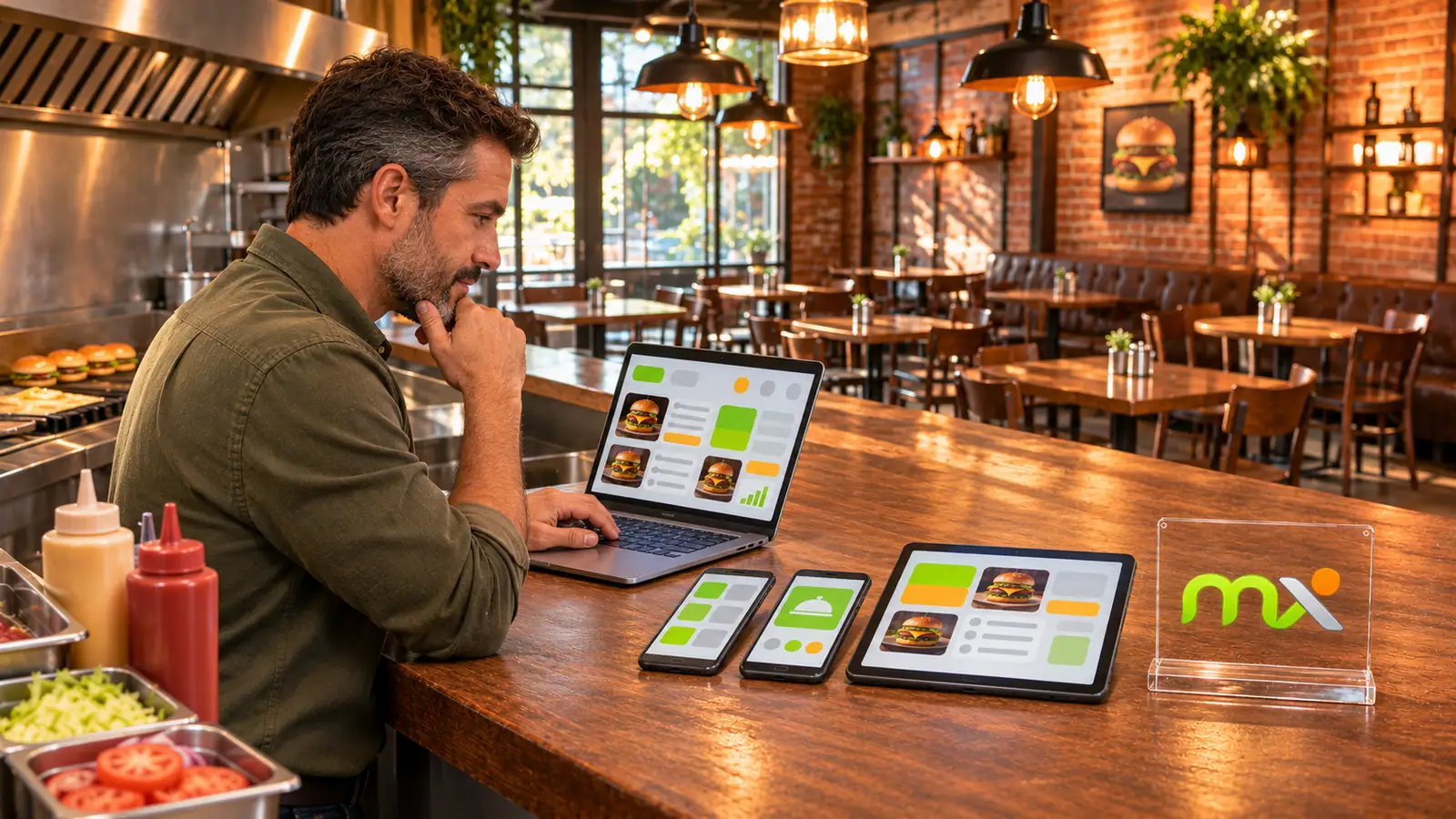
In the Digital Tab dashboard, you set up your menu with categories, prices and photos, add your tables and give each team member their own login.
The app runs on your restaurant’s Android smartphones and tablets. You can use the devices your team already has without buying special equipment.
Opening a tab
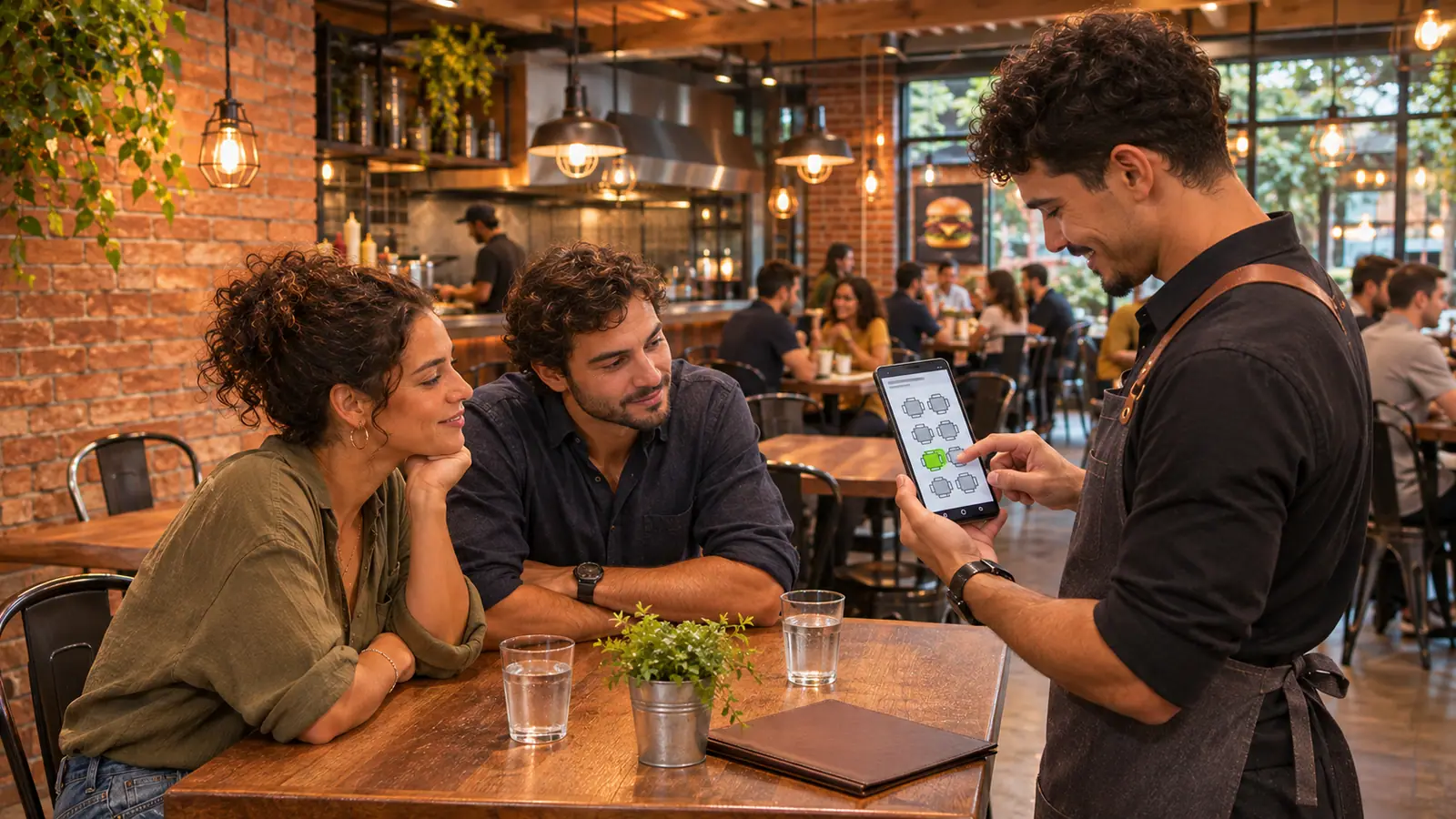
The server selects the table in the app and opens a tab. At the counter, staff can use the customer’s name or a token number to open a tab.
You can open one tab for the table or one for each person, making it easier to split the bill at the end.
Ordering at the table
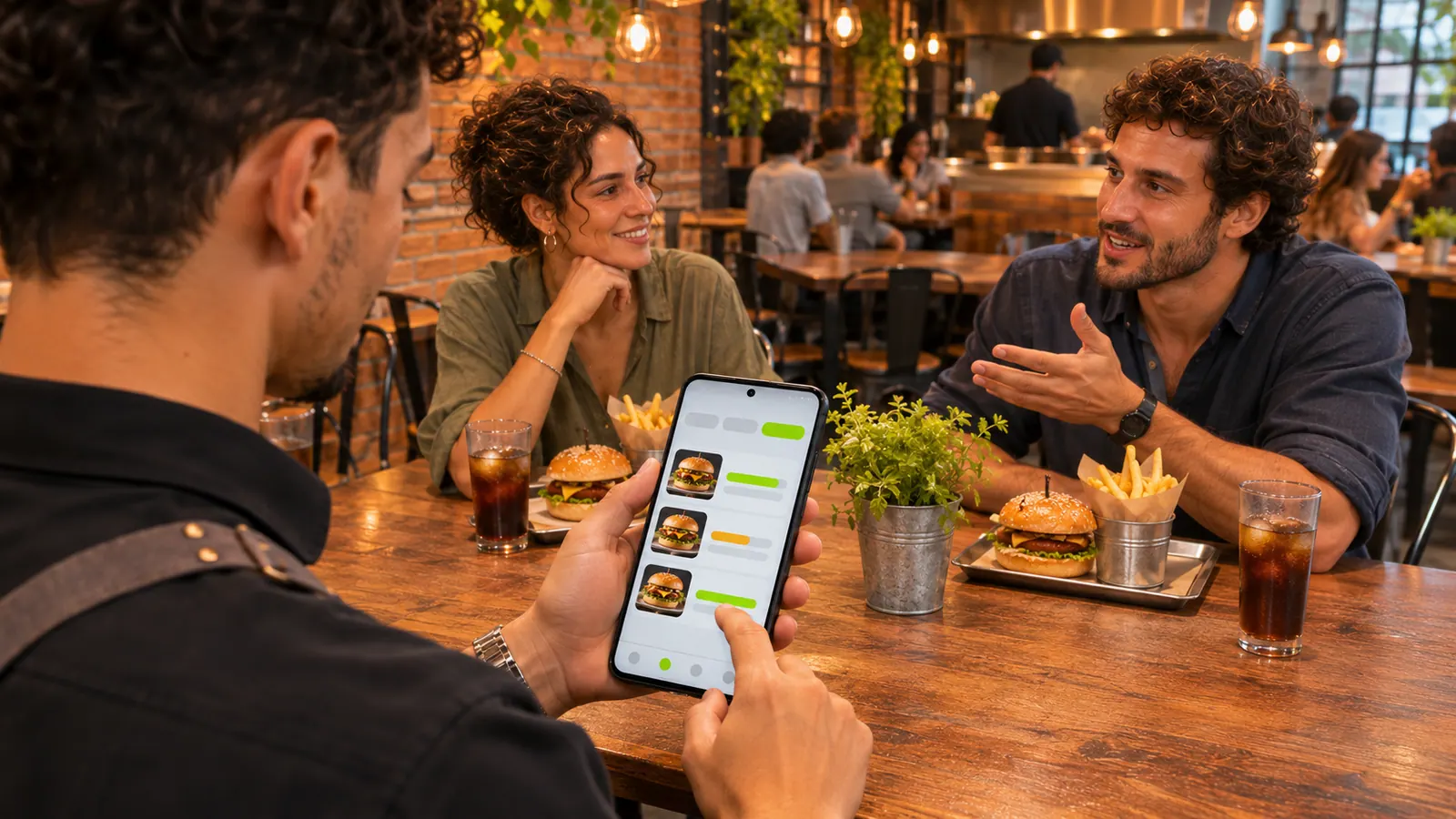
The server finds menu items by name or category. Instructions such as “no onions” or “well done” go through with the order.
The tab total appears straight away, so the server can check the order with the customer before sending it.
Kitchen and bar
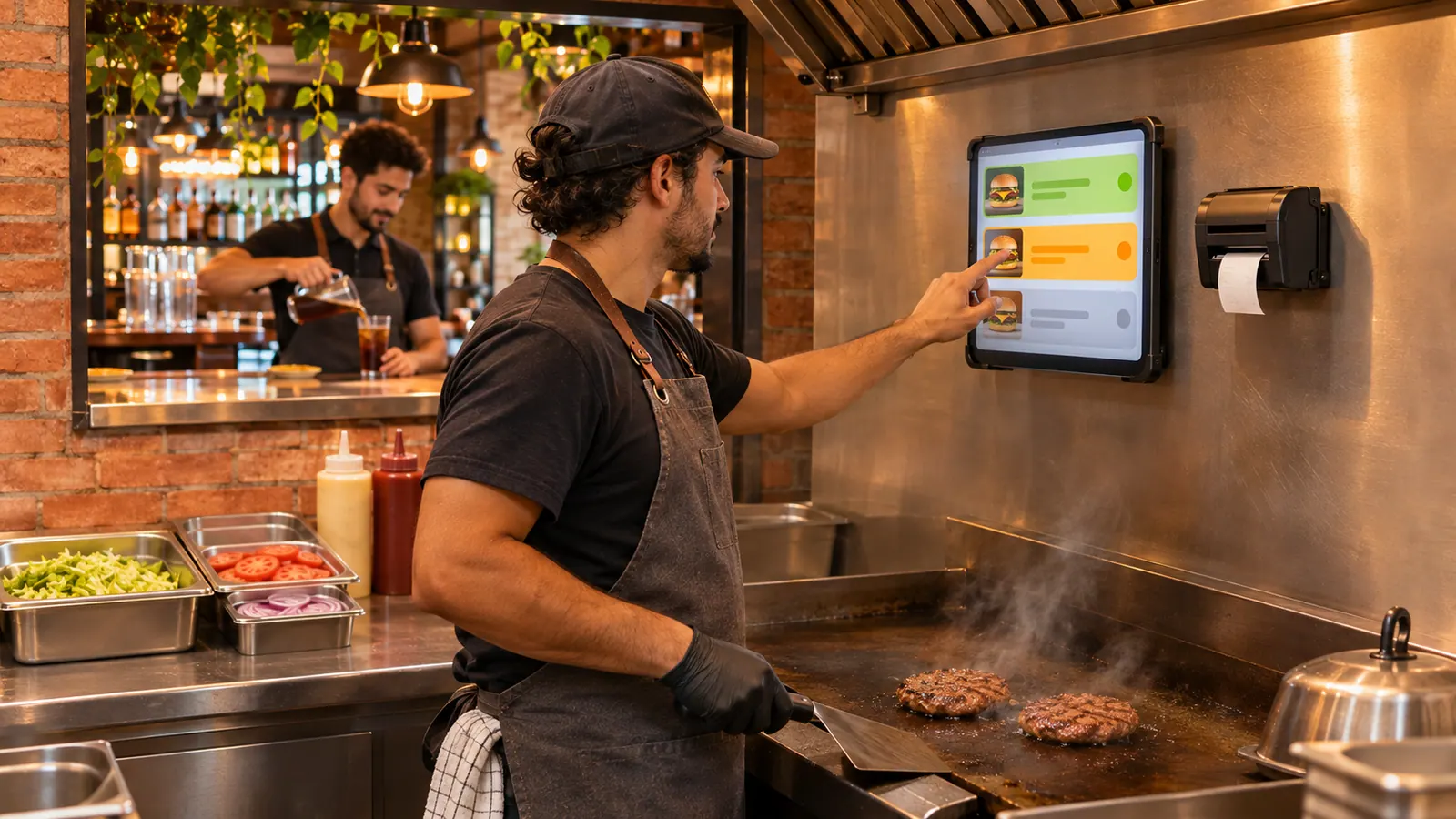
Once confirmed, food orders go to the kitchen and drinks orders to the bar. Each team receives its orders on a screen or a printer.
Each team receives only its own items, in the order they come in, without passing paper slips around.
While the tab is open
Staff can add orders to the same tab as often as needed. Each new order goes to the kitchen and bar in the same way.
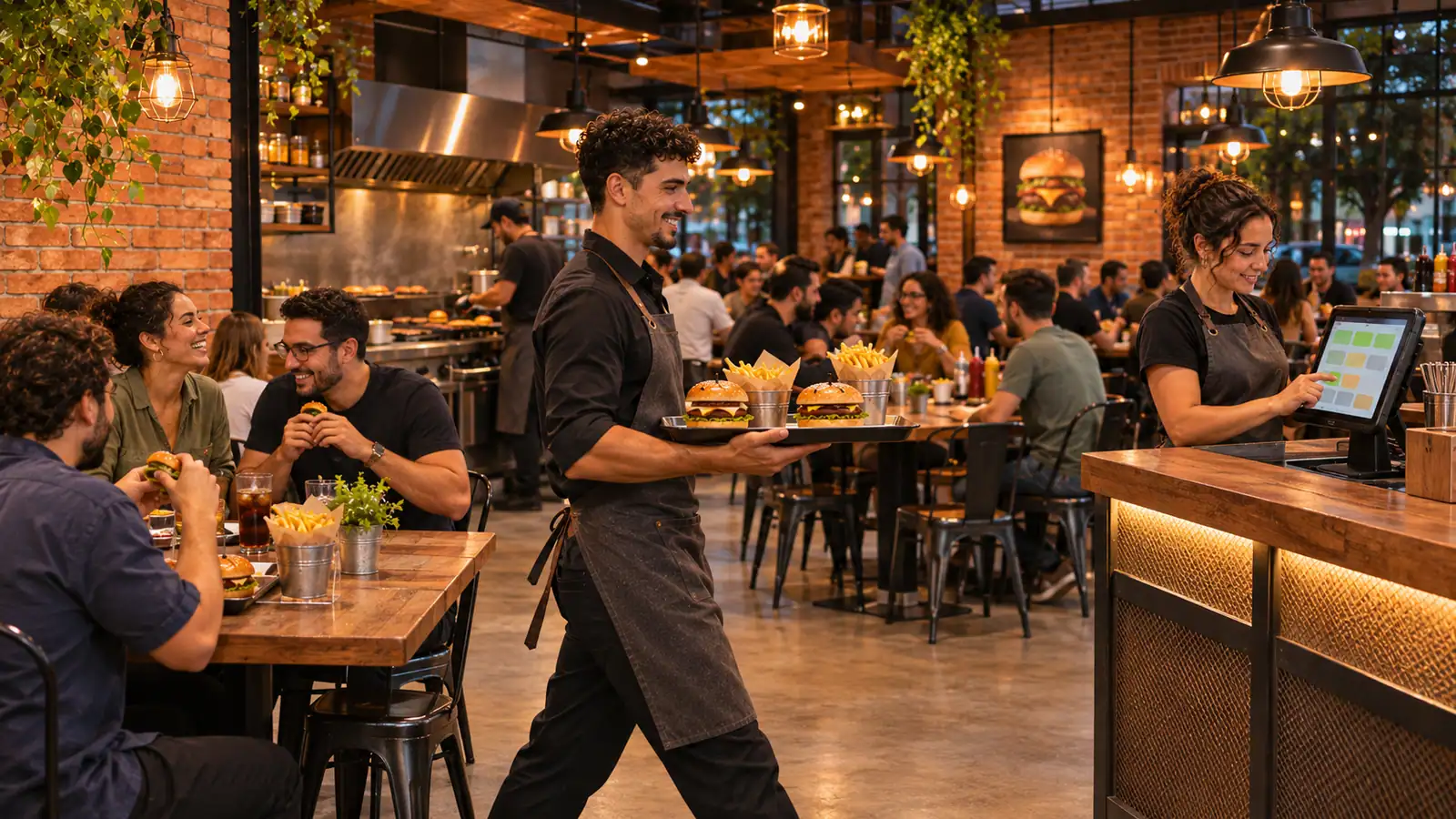
At the till, staff can see all open tabs and the amount on each one.
Closing the bill
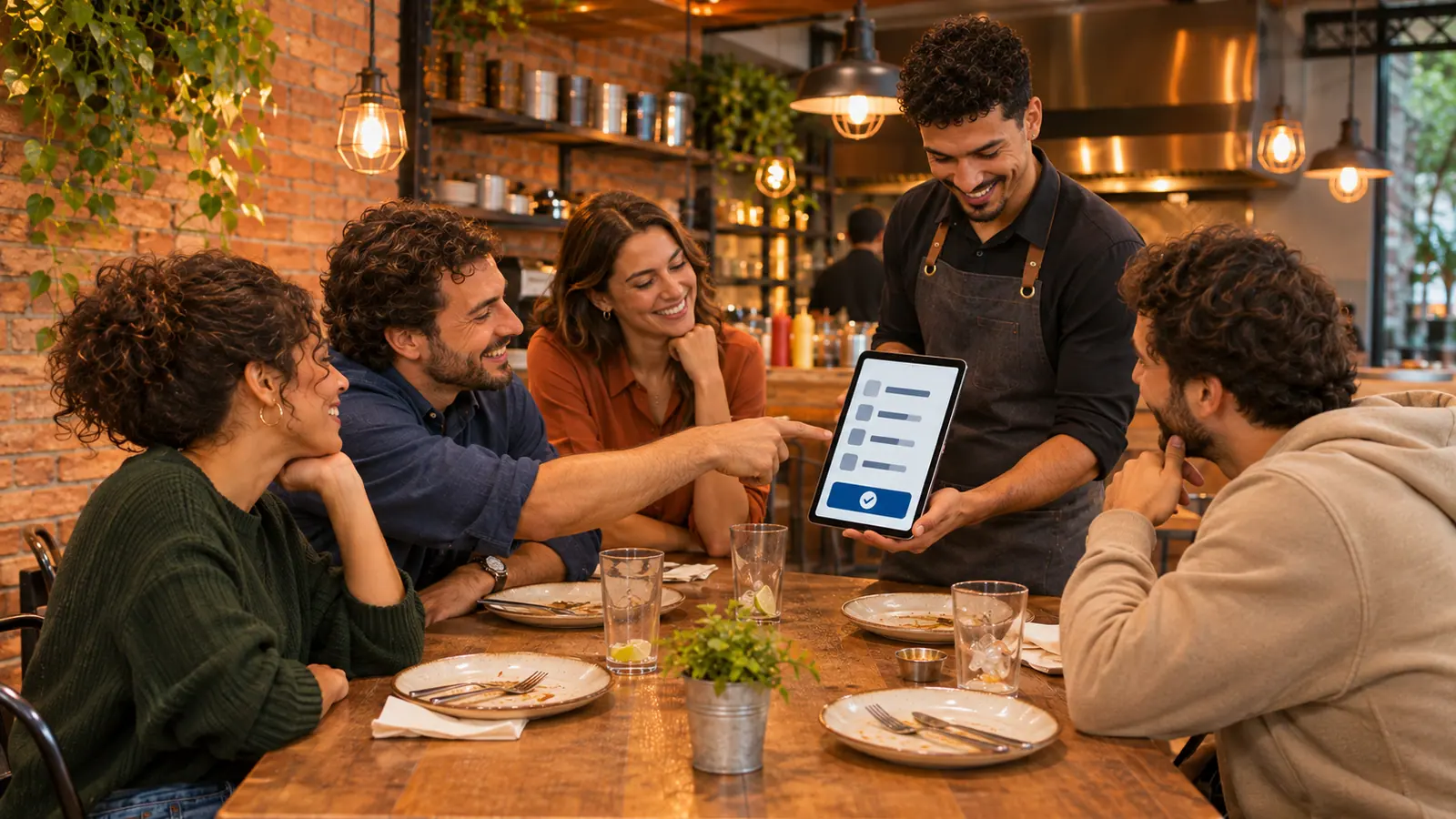
When the customer asks for the bill, the app shows an itemised breakdown with the service charge you set.
Customers can split the bill equally or pay for the items each person ordered.
Payment
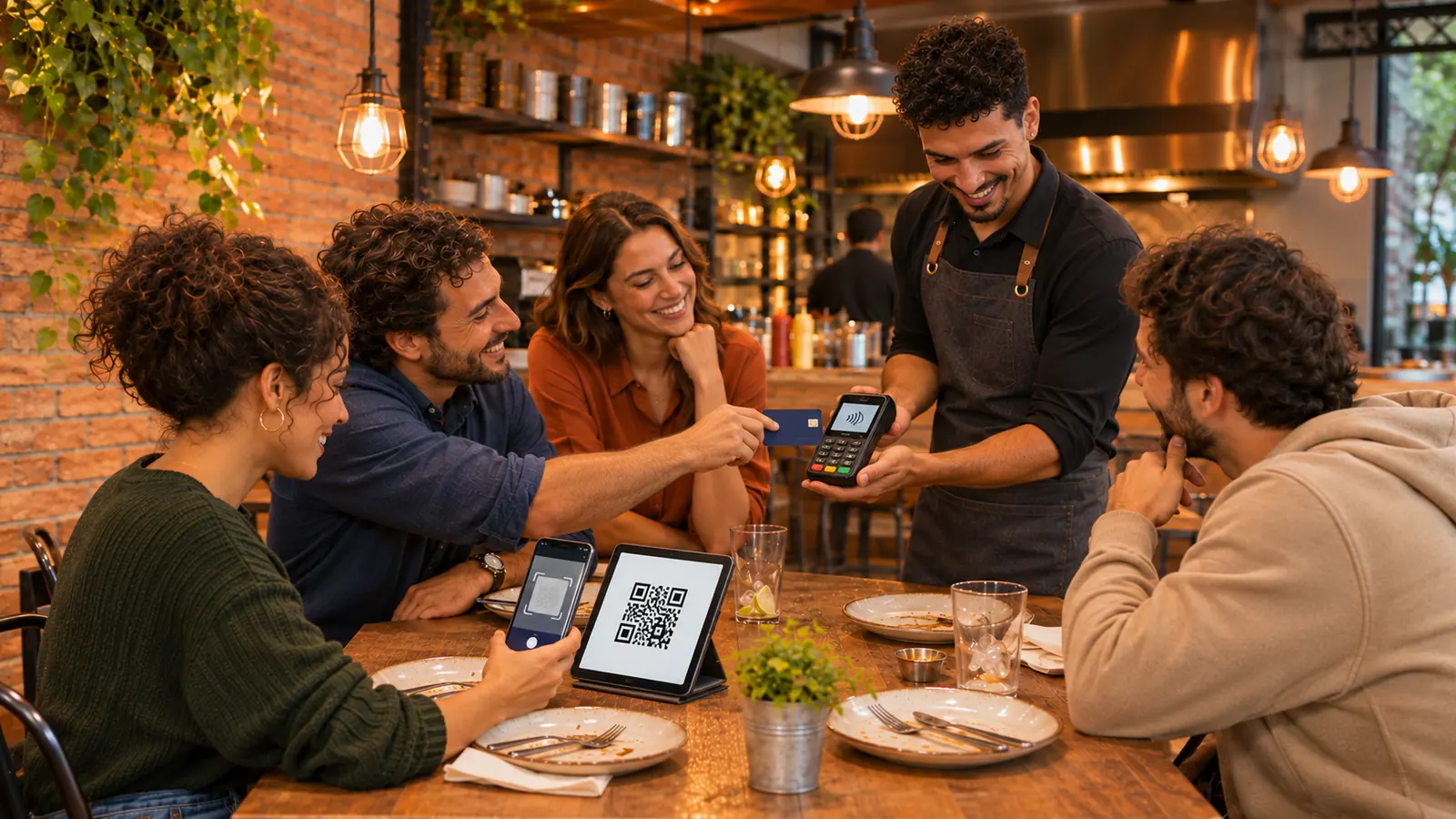
Customers can pay using the QR Code on screen with automatic confirmation, by card at the terminal or in cash.
Once the bill is paid, the tab is closed and the table is free for the next customers.
After closing time
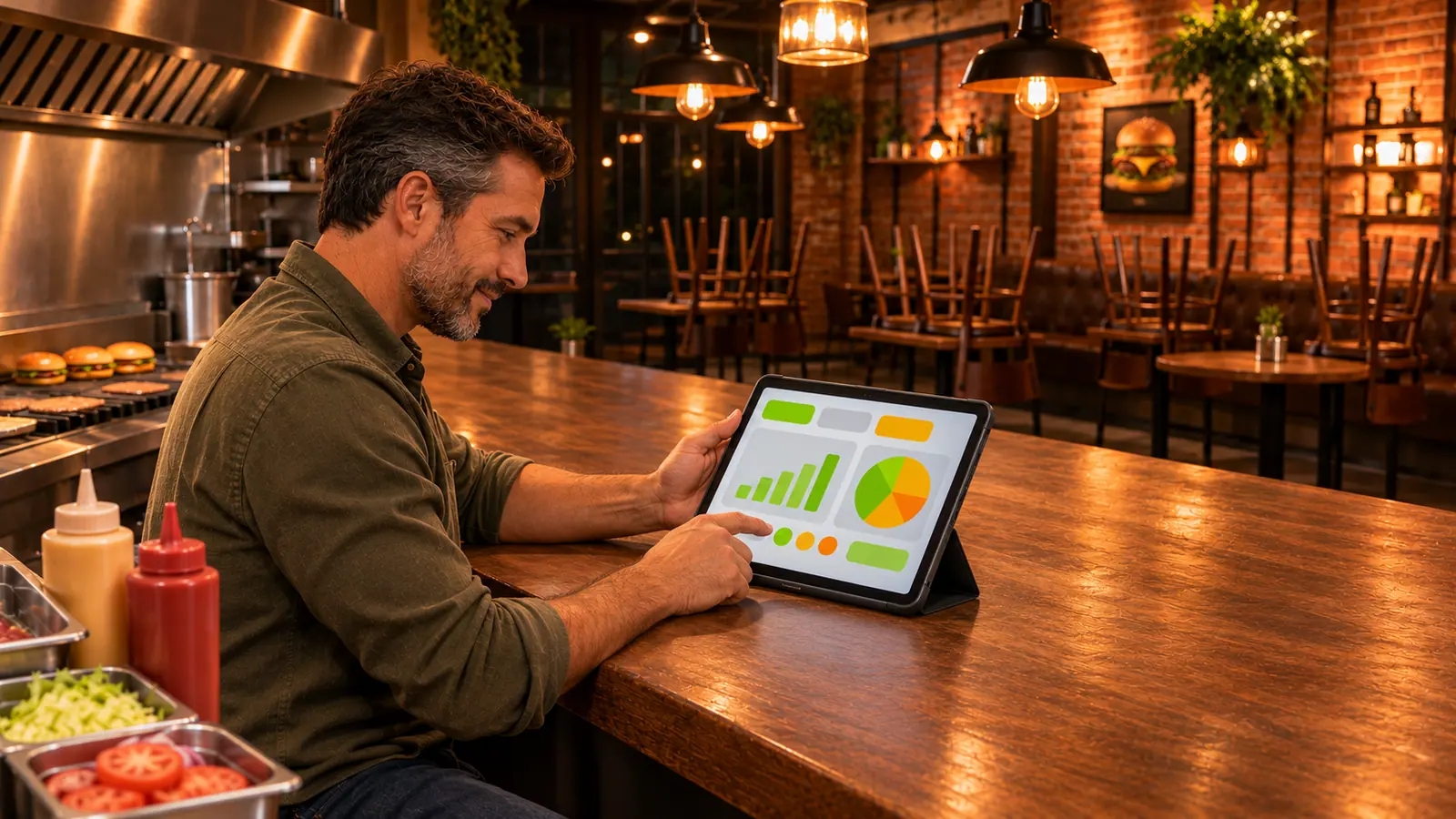
Reports show the day’s sales by item, server, table and payment method.
You can balance the till, see which items customers order most and track how busy the restaurant is throughout the week.
What if the internet goes down?
Service continues. The app automatically uses the first available option in this order:
With an internet connection
Your devices connect to the Mx Tecnologia server, so each new entry appears on all of them straight away.
With your computer
If you have a computer on your network, it keeps your devices connected to each other over Wi-Fi even without internet access. It sends everything to the server once the connection returns.
On the device itself
Without internet access or a computer, each device saves its own entries and sends them automatically when the connection returns, without creating duplicates.
You can still close the bill without internet access. Only the automatic confirmation of a QR Code payment has to wait until the connection returns.
Want to see Digital Tab in action at your restaurant?
Tell us how you work today and what you would like to change. Together we can explore the options and agree on the scope.